Online Orders Integration Guide for XDRest
Microservice: XDPeople.Soba.Table.WebAPI
Authentication: Bearer Token (JWT) or API Key via X-API-KEY header See more →
Introduction
This guide describes the integration process for sending and managing table orders through the XDSobaAPI. The goal is to support our partners in the correct use of this functionality, ensuring a reliable order flow.
In the adopted model, the XDSobaAPI receives the submitted orders and ensures their routing to the Point of Sale (XDREST), where the orders associated with the table are printed. This model guarantees a stable and consistent order flow, suitable for the operational context.
The integration provides specific endpoints for the fundamental operations of the table order lifecycle, namely:
- Sending orders to a table See more →
- Removing products See more →
- Transferring products between tables See more →
- Closing the account, with the return of the generated document information See more →
Additionally, whenever the end customer's email address is provided at the time of closing the account, the API automatically sends the invoice to the indicated email.
This guide is intended to serve as an integration guide, objectively describing the general operation of the solution, the available endpoints, and the expected behavior of each operation.
Configuration Steps
The configuration is done by creating and parameterizing a specific button on the XDRest sales screen. Follow the steps below to complete the process.
Add a New Button
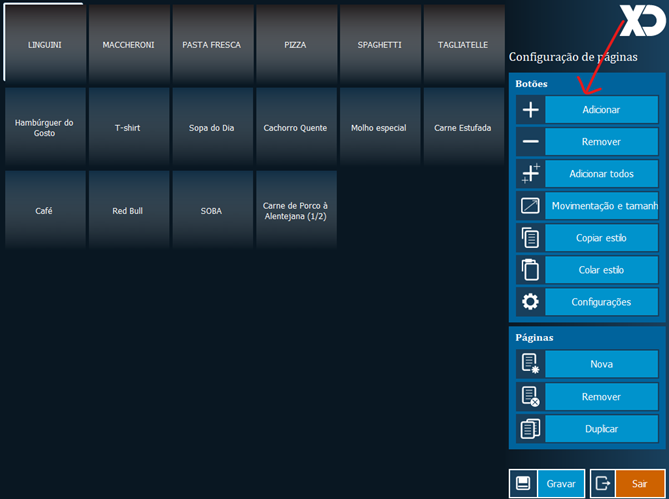
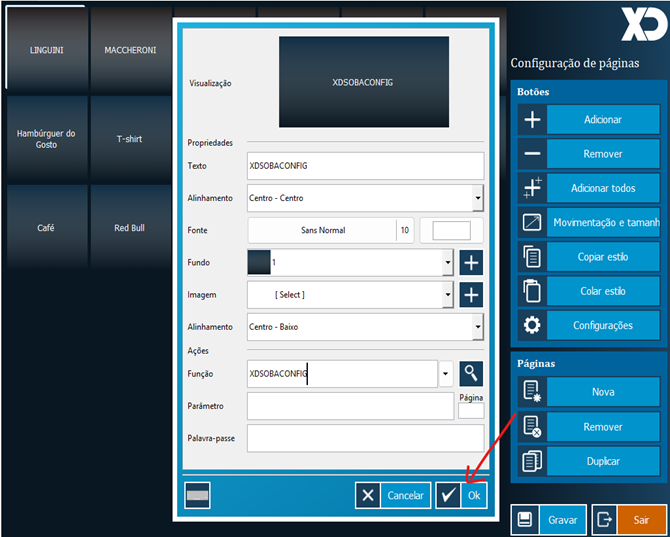
In the XDRest page configuration mode, the first step is to add a new button that will serve as an access point to the Soba API settings.
- Press the Add button on the right side menu to create a new button on the sales layout.
Access Button Settings
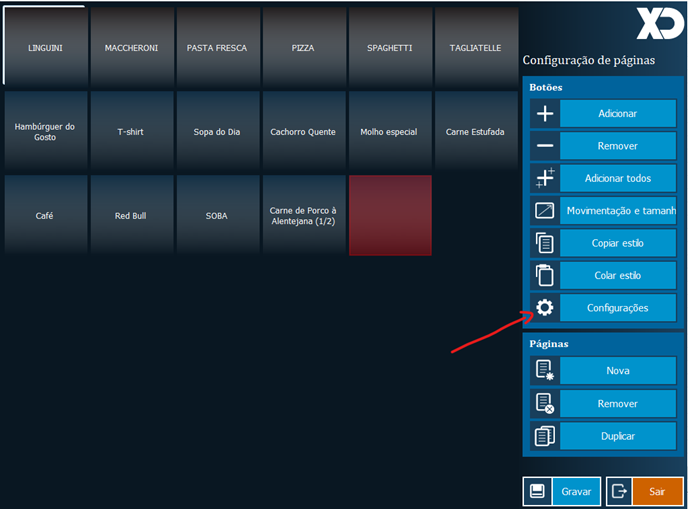
With the new button selected, access the settings menu to define its appearance and functionality.
- Click on Settings in the right side menu.
Define the Button's Function
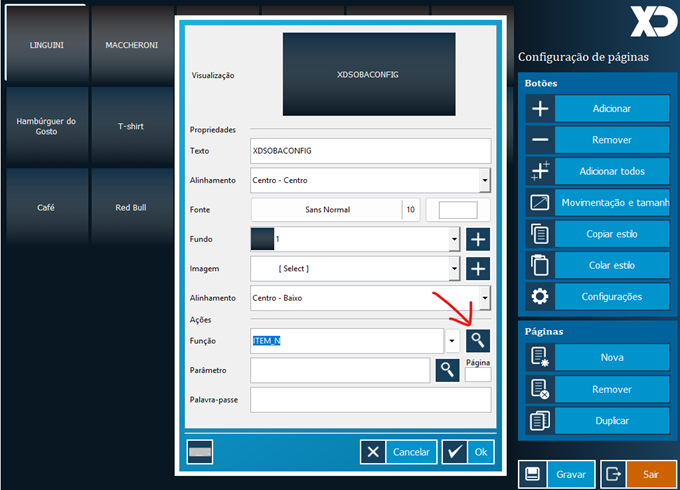
In this step, you will associate the specific Soba API configuration function with the button.
- In the Function field, click the search icon to open the list of available functions.
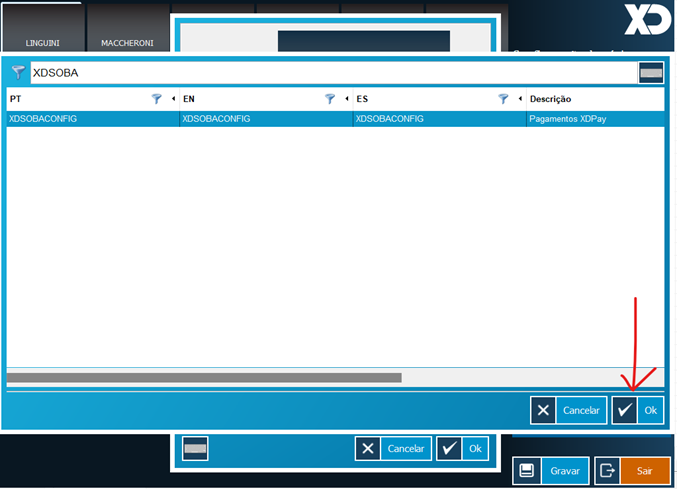
- In the function search window, search for and select the XDSOBACONFIG function.
- After selecting the function, click Ok to confirm.
- The XDSOBACONFIG function will appear in the corresponding field. Click Ok to close the button properties window.
Save Changes
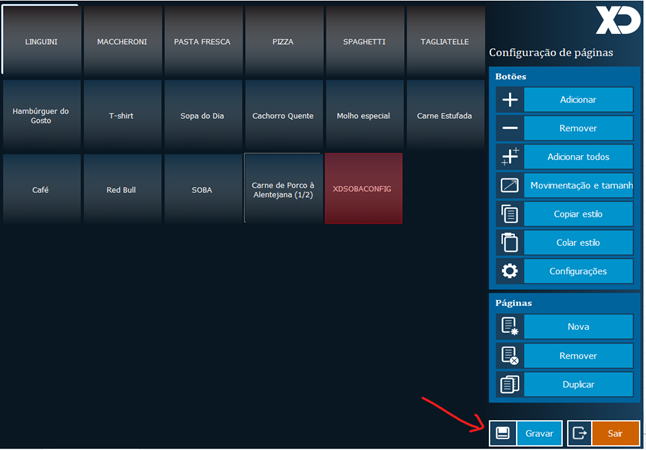
After configuring the button, it is crucial to save the changes so that they are applied to the sales layout.
- Click the Save button in the lower right corner of the screen.
Access the Soba API Configuration Screen
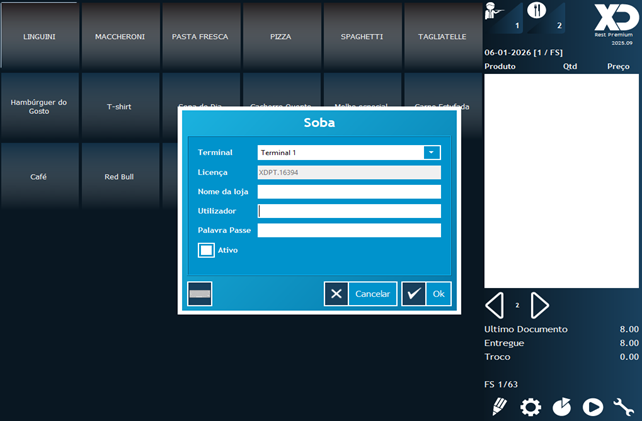
With the button already configured and saved, exit the editing mode. By clicking the new XDSOBACONFIG button, the Soba API configuration screen will be displayed for entering the authentication and identification data necessary for communication with the API.
Configuration Field Details
The Soba API configuration form contains the following fields:
| Field | Description |
|---|---|
| Terminal | XD terminal that will receive the orders. |
| License | XD software license number. This field is filled automatically. |
| Store name | Name of the establishment or store associated with the license. |
| User | Refers to the valid XDCloud Account license. This is an open text field to accommodate customers who may have multiple XD licenses. |
| Password | The password corresponding to the XDCloud account (license) entered in the User field. |
| Active | (Required) Activates communication with the Soba API. This option must be checked for the integration to work. |
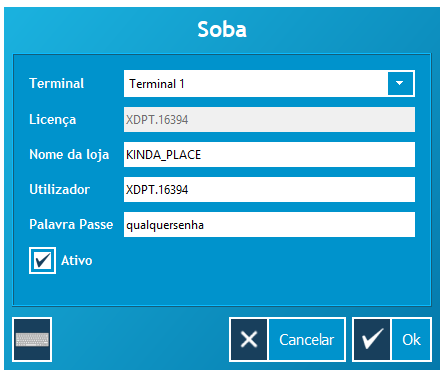
By correctly filling in these fields and, crucially, checking the 'Active' flag, the terminal will be able to receive orders through the Soba API.
Available Endpoints
This section describes the endpoints available for managing table orders, covering operations such as sending orders, cancellation, transfer, and closing the account. For each endpoint, the respective objective, the HTTP method used, and the expected behavior of the operation are presented.
Before starting to send orders to the table, it is recommended to verify the XD connection status and consult the details endpoint of the available items.
XD Connection Status
URL: /gateway/online-orders/connection
Method: GET
Description
This lightweight endpoint returns whether the XD software (XDREST) is currently connected for the authenticated tenant. It is intended for periodic connectivity checks.
It always returns 200 OK — the connected field in the response body indicates the actual connection state.
Response Structure
| Field | Type | Description |
|---|---|---|
connected | boolean | true if XDREST is connected; false otherwise. |
Response Example
{
  "connected": true
}
Call this endpoint before sending orders to avoid routing failures when XDREST is temporarily unavailable. If connected is false, hold the order and retry after a short interval instead of sending to POST /gateway/online-orders/table.
Query Item Details
URL: /gateway/item/{keyId}/details
Method: GET
Description
This endpoint allows you to consult the details of an item, returning structured information according to its characteristic. The response includes, where applicable, data related to menus, compositions, or complements.
Route Parameter
keyId (string, required): Identifier of the item in the system.
Response Structure
The endpoint returns an object of type ItemDetailDTO:
| Parameter | Type | Description |
|---|---|---|
| KeyId | string | Item identifier. |
| Description | string | Item description. |
| ShortName1 | string | Abbreviated name of the item. |
| RetailPrice1 | decimal | Sale price of the item. |
| ItemType | int | Type of item (Normal, Menu, Composite, etc.). |
| ComplementDetails | object | Details of the complements (if applicable). |
| MenuDetails | object | Details of the menu (if applicable). |
| CompositeDetails | object | Details of the composite item (if applicable). |
| PizzaDetails | object | Details of the Pizza item (if applicable). |
Only the properties corresponding to the item's characteristic are filled; the rest can be returned as null.
Expected Behavior
- The service validates the existence of the item by the keyId.
- The returned data varies according to the characteristic of the item.
- Complements, menus, or compositions are automatically aggregated.
- Non-existent items return an appropriate error.
Sending Orders to a Table
URL: /gateway/online-orders/table
Method: POST
Description
This endpoint allows sending orders to a table. When orders are sent via the POST /gateway/online-orders/table endpoint, XDRest processes the entry and triggers the printing of order tickets on the respective preparation printers (kitchen/counter) according to the printing zone settings configured in the POS.
The endpoint supports a hierarchical structure of items, allowing the sending of main products with their respective sub-items, making it suitable for scenarios such as menus, combinations, or products with complements.
Request Body Structure
The request body must be sent in JSON format and follow the TableOrderRequestDTO model, containing the following information:
TableOrderRequestDTO
| Parameter | Type | Required | Description |
|---|---|---|---|
| TableId | int | Yes | Table identifier. Must be different from 0. |
| EmployeeId | int | Yes | Identifier of the employee responsible for the order. |
| PersonsNumber | int | No | Number of people at the table. Default value: 0. |
| Items | List<OrderItemDTO> | Yes | List of order items. Must contain at least one item. |
OrderItemDTO
| Parameter | Type | Required | Description |
|---|---|---|---|
| KeyId | string | No | Item identifier in the system. For observations or free text complements, this field must be empty. |
| Description | string | No | Used for free text observations/complements. |
| Quantity | decimal | No | Quantity of the item. Default value: 1.0. |
| Price | decimal | No | Price of the item. If not informed, the system uses the price already registered in the system. |
| OptionsLineId | int | No | Option line identifier, used for associating sub-items. See section "Explanation of OptionsLineId". |
| SubItems | List<OrderItemDTO> | No | List of sub-items, allowing hierarchical structure (menus, compositions, etc.). |
Order Examples
Normal Product
{
  "TableId": 20,
  "EmployeeId": 1,
  "PersonsNumber": 0,
  "Items": [
    {
      "KeyId": "134",  // Coca-Cola
      "Description": null,
      "Quantity": 1.0,
      "Price": 0.0,
      "OptionsLineId": 0,
      "SubItems": []
    }
  ]
}
Menu Type
Note: In the example below, the main menu item has OptionsLineId equal to 0, while each sub-item has its respective OptionsLineId (corresponding to the LineLevel field present in MenuDetails when obtaining the details of a Menu type item), used to identify the corresponding option line.
{
  "TableId": 12,
  "EmployeeId": 1,
  "PersonsNumber": 0,
  "Items": [
    {
      "KeyId": "70000",  // Executive Menu
      "Description": null,
      "Quantity": 1.0,
      "Price": 0.0,
      "OptionsLineId": 0,
      "SubItems": [
        {
          "KeyId": "50261",  // Soup of the Day
          "Description": null,
          "Quantity": 1.0,
          "Price": 0.0,
          "OptionsLineId": 1,
          "SubItems": []
        },
        {
          "KeyId": "50848",  // Bacalhau à Brás
          "Description": null,
          "Quantity": 1.0,
          "Price": 0.0,
          "OptionsLineId": 2,
          "SubItems": []
        },
        {
          "KeyId": "51100",  // Chocolate Mousse
          "Description": null,
          "Quantity": 1.0,
          "Price": 0.0,
          "OptionsLineId": 3,
          "SubItems": []
        }
      ]
    }
  ]
}
Sending multiple menus
When it is necessary to send more than one menu to the table, the behavior depends on the “Associate order to menu” setting defined in the XDRest terminal.
With the “Associate order to menu” option activated
In this configuration, the value of the menu's Quantity property should not be incremented. Instead, you should:
Each menu must:
- Have Quantity = 1;
- Contain all its sub-items (SubItems);
- Maintain a complete, autonomous, and independent structure.
With the “Associate order to menu” option deactivated
When this option is not active, it is allowed to send the menu with Quantity greater than 1, without the need to repeat the item in the Items array.
Example (With the Associate order to menu flag activated):
{
  "TableId": 24,
  "EmployeeId": 1,
  "PersonsNumber": 0,
  "Items": [
    {
      "KeyId": "70000", // SEAFOOD MENU WITH COMPOSITES
      "Description": null,
      "Quantity": 1.0,
      "Price": 0.0,
      "OptionsLineId": 0,
      "SubItems": [
        {
          "KeyId": "50261", // FRIED SHRIMP
          "Description": null,
          "Quantity": 1.0,
          "Price": 0.0,
          "OptionsLineId": 1,
          "SubItems": []
        },
        {
          "KeyId": "50848", // PROFESCO WATER
          "Description": null,
          "Quantity": 1.0,
          "Price": 0.0,
          "OptionsLineId": 2,
          "SubItems": []
        },
        {
          "KeyId": "50522", // FINI DULCE DE LECHE
          "Description": null,
          "Quantity": 1.0,
          "Price": 0.0,
          "OptionsLineId": 2,
          "SubItems": []
        }
      ]
    },
    {
      "KeyId": "70000", // SEAFOOD MENU WITH COMPOSITES
      "Description": null,
      "Quantity": 1.0,
      "Price": 0.0,
      "OptionsLineId": 0,
      "SubItems": [
        {
          "KeyId": "50261", // FRIED SHRIMP
          "Description": null,
          "Quantity": 1.0,
          "Price": 0.0,
          "OptionsLineId": 1,
          "SubItems": []
        },
        {
          "KeyId": "50848", // PROFESCO WATER
          "Description": null,
          "Quantity": 1.0,
          "Price": 0.0,
          "OptionsLineId": 2,
          "SubItems": []
        },
        {
          "KeyId": "50522", // FINI DULCE DE LECHE
          "Description": null,
          "Quantity": 1.0,
          "Price": 0.0,
          "OptionsLineId": 2,
          "SubItems": []
        }
      ]
    }
  ]
}
Composite Product
{
  "TableId": 20,
  "EmployeeId": 1,
  "PersonsNumber": 0,
  "Items": [
    {
      "KeyId": "70016",  // Burger Combo
      "Description": null,
      "Quantity": 1.0, // Could be 2, 3, whatever the desired quantity
      "Price": 1.0,
      "OptionsLineId": 0,
      "SubItems": []
    }
  ]
}
Product with complements
When sending an item with complements to the table:
- The main item must be sent normally, with the respective quantity (Quantity);
- The complements must be sent within the SubItems array;
- The quantity of each complement represents the total units added to the main item;
- The quantity of the complement can be equal to, less than, or greater than the quantity of the main item;
- The OptionsLineId field can be used with the value 0, since the complements are not associated with fixed option lines, functioning only as additions;
- The system associates the complements with the main item exactly as sent in the request.
Example 1 – Complements with the same quantity as the main item
In the example below:
- 2 hamburgers are sent (quantity = 2).
- Each complement is sent with a total quantity equal to 2, indicating that it will be applied to both units of the main item.
{
  "TableId": 10003,
  "EmployeeId": 1,
  "PersonsNumber": 0,
  "Items": [
    {
      "KeyId": "B018",  // Special Burger
      "Description": null,
      "Quantity": 2.0,
      "Price": 1.0,
      "OptionsLineId": 0,
      "SubItems": [
        {
          "KeyId": "388",  // Cheddar Cheese
          "Description": null,
          "Quantity": 2.0,
          "Price": 0.0,
          "OptionsLineId": 0,
          "SubItems": []
        },
        {
          "KeyId": "389",  // Extra Bacon
          "Description": null,
          "Quantity": 2.0,
          "Price": 0.0,
          "OptionsLineId": 0,
          "SubItems": []
        },
        {
          "KeyId": "390",  // Caramelized Onion
          "Description": null,
          "Quantity": 2.0,
          "Price": 0.0,
          "OptionsLineId": 0,
          "SubItems": []
        },
        {
          "KeyId": "391",  // Special Sauce
          "Description": null,
          "Quantity": 4.0,
          "Price": 0.0,
          "OptionsLineId": 0,
          "SubItems": []
        }
      ]
    }
  ]
}
Pizza Type
{
  "TableId": 10006,
  "EmployeeId": 1,
  "PersonsNumber": 0,
  "Items": [
    {
      "KeyId": "1023",  // Large Pizza
      "Description": null,
      "Quantity": 2.0,
      "Price": 0.0,
      "OptionsLineId": 0,
      "SubItems": [
        {
          "KeyId": "1007",  // Mozzarella
          "Description": null,
          "Quantity": 2.0,
          "Price": 0.0,
          "OptionsLineId": 1,
          "SubItems": []
        },
        {
          "KeyId": "1009",  // Pepperoni
          "Description": null,
          "Quantity": 2.0,
          "Price": 0.0,
          "OptionsLineId": 2,
          "SubItems": []
        },
        {
          "KeyId": "1014",  // Mushrooms
          "Description": null,
          "Quantity": 2.0,
          "Price": 0.0,
          "OptionsLineId": 3,
          "SubItems": []
        },
        {
          "KeyId": "1016",  // Bell Pepper
          "Description": null,
          "Quantity": 2.0,
          "Price": 0.0,
          "OptionsLineId": 4,
          "SubItems": []
        },
        {
          "KeyId": null,
          "Description": "No Onion",
          "Quantity": 2.0,
          "Price": 0.0,
          "OptionsLineId": 5,
          "SubItems": []
        }
      ]
    }
  ]
}
Explanation of the OptionsLineId field
Integer that groups related items within menu or pizza orders.
How it is assigned:
- Root item: usually 0 (base item ordered).
- Menus/combos: each “line” of the menu composition receives its own OptionsLineId (1, 2, 3…), coming from the linelevel of the menu composition. Items on the same line (e.g., main course + side dish) use the same number.
- Pizzas: in pizzas, OptionsLineId is the number of the fraction/part where the item applies. Whole pizza: use 1 for all ingredients, options, or observations. Half-half: use 1 for the first half and 2 for the second. In three parts: 1, 2, 3; in four parts: 1 to 4, and so on, always respecting the numberItems configured for the pizza. All items belonging to the same fraction reuse the same OptionsLineId; each different fraction must have its own number. The API does not adjust or inherit values automatically — the integration must send the correct number for each fraction.
Practical Example:
Consider an "Executive Lunch" menu that includes a starter, a main course, and a dessert:
- The main menu "Executive Lunch" will have OptionsLineId: 0
- The selected starter (e.g., Soup of the Day) will have OptionsLineId: 1
- The main course (e.g., Bacalhau à Brás) will have OptionsLineId: 2
- The dessert (e.g., Chocolate Mousse) will have OptionsLineId: 3
- If the main course has an optional side dish (e.g., Extra Rice), this side dish will keep the same OptionsLineId: 2 of the main course.
Use cases:
- Menu types with multiple selection lines (starter, main course, dessert, etc.)
- Pizza types with multiple ingredient categories
- Complex items with options organized by lines
Transferring products between tables
URL: /gateway/online-orders/table/transfer
Method: POST
Description
This endpoint allows the total or partial transfer of items between tables. The operation moves the selected items from the source table to the destination table, correctly preserving the quantities and structure of the items.
The transfer is performed based on the UniqueId of each item, ensuring that only the intended items are transferred. The endpoint supports a hierarchical structure, allowing the transfer of main items and their respective sub-items, such as menus, composite items, or pizzas with ingredients.
TableOrderTransferRequestDTO
| Parameter | Type | Required | Description |
|---|---|---|---|
| SourceTableId | int | Yes | Source table identifier |
| DestinationTableId | int | Yes | Destination table identifier |
| EmployeeId | int | Yes | Identifier of the employee responsible for the operation |
| Items | List<OrderTransferItemDTO> | Yes | List of items to transfer |
OrderTransferItemDTO
| Parameter | Type | Required | Description |
|---|---|---|---|
| UniqueId | string (GUID) | Yes | Unique identifier of the item line to be transferred |
| ItemType | int | No | Type of item |
| Quantity | decimal | Yes | Quantity to transfer |
| Items | List<OrderTransferItemDTO> | No | Sub-items associated with the main item |
Examples of Product Transfer between Tables
Normal/Service Product
{
  "SourceTableId": 1,
  "DestinationTableId": 5,
  "EmployeeId": 1,
  "Items": [
    {
      "UniqueId": "61a1b116-01c7-44ed-846b-c77ed11e916c ",
      "KeyId": "132",
      "ItemType": 0,
      "Quantity": 1.0,
      "Items": []
    }
  ]
}
The transfer of items between tables follows the same rules and principles as sending orders to a table. The data structure, quantity handling, and item hierarchy remain consistent in both operations.
In particular:
- Item identification is done through the UniqueId;
- Quantities are respected according to the item type;
- Items with a hierarchical structure (menus, composites, or pizzas) must be sent with all their sub-items, maintaining the parent-child relationship;
- The specific behavior by item type (Normal, Menu, Composite, or Pizza) is identical to that already described in sending orders to a table.
In this way, those who already integrate sending orders to a table can apply the same logic and structure when using the transfer endpoint, reducing the complexity of the integration and avoiding ambiguities in the treatment of items.
Removing products
URL: /gateway/online-orders/table/void
Method: POST
Description
This endpoint allows the total or partial removal of products from an order associated with a table. The removal is identified through the UniqueId of each order line, ensuring that only the correct items are canceled.
The endpoint supports a hierarchical structure of items, allowing the removal of main items and respective sub-items (for example, pizzas with ingredients, menus, or compositions).
Request Body Structure
The request body must follow the TableOrderVoidRequestDTO model and contain the following information:
TableOrderVoidRequestDTO
| Parameter | Type | Required | Description |
|---|---|---|---|
| TableId | int | Yes | Table identifier. Must be different from zero. |
| EmployeeId | int | Yes | Identifier of the employee responsible for the cancellation. |
| Items | List<OrderVoidItemDTO> | Yes | List of items to be canceled. Must contain at least one item. |
OrderVoidItemDTO
| Parameter | Type | Required | Description |
|---|---|---|---|
| UniqueId | string (GUID) | Yes | Unique identifier of the item line to be canceled. |
| KeyId | string | Yes | Identifier of the item at the table, which may correspond to a system item or to free text observations/complements. |
| ItemType | int | No | Type of item. See "Item Types" table below. |
| Quantity | decimal | Yes | Quantity to be removed. Default value: 1.0. |
| CancellationReasonId | int | No | Identifier of the reason for cancellation. Default value: 0. |
| Items | List<OrderVoidItemDTO> | No | Sub-items associated with the main item, allowing hierarchical removal. |
Examples of product removal
Pizza Type
When only 1 pizza was sent to the table and you want to remove it, the request must contain:
- The pizza item (KeyId);
- Quantity 1;
- All respective ingredients/options (SubItems).
{
  "TableId": 1,
  "EmployeeId": 1,
  "Items": [
    {
      "UniqueId": "725d2d06-45be-42d9-94b7-90cc2cd7dcfa",
      "KeyId": "1023",  // Large Pizza
      "ItemType": 6,
      "Quantity": 1.0,
      "CancellationReasonId": 0,
      "Items": [
        {
            "UniqueId": "0cd4ae90-3b6d-4da0-bb3a-90df8f62ab16",
            "KeyId": "1006",  // Extra Cheese
            "ItemType": 0,
            "Quantity": 1.0,
            "CancellationReasonId": 0,
            "Items": []
        },
        {
            "UniqueId": "453d83c9-530c-46c0-b1a6-21fe9613c4d2",
            "KeyId": "1012",  // Olives
            "ItemType": 0,
            "Quantity": 1.0,
            "CancellationReasonId": 0,
            "Items": []
        }
      ]
    }
  ]
}
Menu Type
{
  "TableId": 1,
  "EmployeeId": 1,
  "Items": [
    {
      "UniqueId": "2fcce2fb-28c7-4e7d-b1c1-7bfa298afd74",
      "KeyId": "372",  // Menu of the Day
      "ItemType": 4,
      "Quantity": 1.0,
      "CancellationReasonId": 0,
      "Items": [
        {
            "UniqueId": "63e2c6b1-58fe-4542-a768-c01eabd90044",
            "KeyId": "360",  // Vegetable Cream Soup
            "ItemType": 0,
            "Quantity": 1.0,
            "CancellationReasonId": 0,
            "Items": []
        },
        {
            "UniqueId": "21235d0a-19aa-41c9-bf36-1384fb5ebe8a",
            "KeyId": "187",  // Grilled Chicken
            "ItemType": 0,
            "Quantity": 1.0,
            "CancellationReasonId": 0,
            "Items": []
        }
      ]
    }
  ]
}
Service/Normal Type
Just indicate the quantity you want to remove from the product.
{
  "TableId": 2,
  "EmployeeId": 1,
  "Items": [
    {
      "UniqueId": "99a02507-7849-40ed-8389-db4ddfa25353",
      "KeyId": "50131", // Service Fee
      "ItemType": 5,
      "Quantity": 2.0,
      "CancellationReasonId": 0,
      "Items": []
    }
  ]
}
Service or Normal type items are the simplest in terms of removal. They do not have a hierarchy (parent/children) or internal dependencies. The cancellation is done exclusively based on the informed quantity.
Removal rules
Menu Type
A Menu type item is treated as an indivisible set, composed of the main item (parent) and respective sub-items (children).
For this reason, cancellation is always performed at the menu level, and it is not allowed to remove only isolated sub-items.
The behavior of the removal depends on how the menus were sent, depending on the “Associate order to menu” setting in the XDRest terminal.
With the “Associate order to menu” option activated
In this configuration, each menu is sent as an independent instance (Quantity = 1), even if several menus have the same KeyId.
Example:
5 menus were sent, each as a distinct object in the Items array. To remove only 2 of these 5 menus:
- The cancellation request must contain 2 objects
- Each object represents a specific instance of the menu to be canceled.
With the “Associate order to menu” option deactivated
When this option is not active, it is allowed to send menus with Quantity > 1 in a single object.
Example:
A single menu object was sent with Quantity = 5. To remove only 2 of these menus:
- The cancellation request must contain a single menu object,
- With Quantity = 2, indicating the total quantity to remove,
- It is not necessary to indicate an individual instance for each menu.
General rule
- The removal request must always reflect the structure used in the original sending:
- Menus sent as individual instances → removal by individual instances;
- Menus sent with aggregated quantity → removal by aggregated quantity.
Service / Normal Type
When removing an item of this type:
- Send only the item to be removed;
- Inform the exact quantity you want to remove;
- The system will subtract the removed quantity from the total existing quantity at the table;
- It is not necessary to send sub-items (Items empty).
Practical example In the example above:
- The Service Fee item (KeyId = 50131) exists at the table;
- 2 units of this item are being canceled.
Composite Type
The Composite type represents a parent item that is formed by one or more child items, where each child can have its own quantity depending on the composition.
For this reason, the removal of a composite must always consider the complete hierarchy:
- The parent item (composite);
- All associated child items;
- The correct and proportional quantities between parent and children.
It is not allowed to remove only the parent or only the children in isolation.
{
  "TableId": 4,
  "EmployeeId": 1,
  "Items": [
    {
      "UniqueId": "47737e6c-b7a9-4257-b785-44e42b3a96b5",
      "KeyId": "70016",
      "ItemType": 18,
      "Quantity": 2.0,
      "CancellationReasonId": 0,
      "Items": [
        {
          "UniqueId": "89fbf4a8-36b5-40bf-bf34-b2e499a869ae",
          "KeyId": "47",
          "ItemType": 0,
          "Quantity": 2.0,
          "CancellationReasonId": 0,
          "Items": []
        },
        {
          "UniqueId": "83cf506c-4211-44af-b78e-9ee802c18175",
          "KeyId": "49",
          "ItemType": 0,
          "Quantity": 4.0,
          "CancellationReasonId": 0,
          "Items": []
        }
      ]
    }
  ]
}
Pizza Type
When, for example, 4 identical pizzas are sent to the table and the objective is to remove only 2, the cancellation must indicate:
- Quantity = 2 in the pizza item;
- The sub-items (ingredients) must also have the proportional quantity (2);
- The system will automatically subtract the canceled quantity.
{
  "TableId": 2,
  "EmployeeId": 1,
  "Items": [
    {
      "UniqueId": "19f6b61a-e295-45e4-a8e2-53774f67a9f3",
      "KeyId": "70020",
      "ItemType": 6,
      "Quantity": 2.0,
      "CancellationReasonId": 0,
      "Items": [
        {
          "UniqueId": "6a69ebb9-9c29-4001-843e-aeaa2ce741b7",
          "KeyId": "5",
          "ItemType": 0,
          "Quantity": 2.0,
          "CancellationReasonId": 0,
          "Items": []
        },
        {
          "UniqueId": "00b03fde-0b16-47df-a33b-3a70392246e1",
          "KeyId": "2",
          "ItemType": 0,
          "Quantity": 2.0,
          "CancellationReasonId": 0,
          "Items": []
        },
        {
          "UniqueId": "3d4d2d8f-6a60-4454-9bc9-5b6348b2e439",
          "KeyId": "59",
          "ItemType": 0,
          "Quantity": 2.0,
          "CancellationReasonId": 0,
          "Items": []
        },
        {
          "UniqueId": "46975022-6b75-4e71-9f19-71699739d6a7",
          "KeyId": "17",
          "ItemType": 0,
          "Quantity": 2.0,
          "CancellationReasonId": 0,
          "Items": []
        }
      ]
    }
  ]
}
Closing the Account
URL: /gateway/online-orders/table/close-account
Method: POST
Description
This endpoint allows closing the account of a table. After processing, the fiscal document associated with the table's consumption is generated.
When the end customer's email field is informed in the request, the XDSobaAPI automatically sends the invoice to the indicated email address.
Request Body Structure
TableBillRequestDTO
| Parameter | Type | Required | Description |
|---|---|---|---|
| TableId | int | Yes | Table identifier. Must be different from zero. |
| TotalAmount | decimal | Yes | Total amount to pay. |
| CustomerVat | string | No | Customer's tax number. If not informed, the Final Consumer will be assumed. |
| CustomerEmail | string | No | Customer's email. When informed, the invoice is sent automatically. |
| MobilePhone | string | No | Customer's phone number. |
| PaymentTypeId | int | No | Payment type identifier. Value 0 uses the default payment type ("OU"). |
| EmployeeId | int | Yes | Identifier of the employee responsible for closing the account. |
Request Example
{
  "TableId": 6,
  "TotalAmount": 40.00,
  "CustomerVat": "",
  "CustomerEmail": "customer@example.com",
  "MobilePhone": "",
  "PaymentTypeId": 1,
  "EmployeeId": 1
}
Rules for Using the paymentTypeId Field
This document establishes the guidelines for the correct use of the paymentTypeId field in the API, detailing the accepted values, the associated business rules, and possible errors.
Default Behavior (Default Value)
When the paymentTypeId field is omitted or sent with the value 0, the system will apply the default payment type, which corresponds to the OU (Others) mechanism. In this case, the SendToCheckingAccount property will always be set to false.
- Value: 0 or omitted field
- Resulting Mechanism: OU (Others)
- SendToCheckingAccount: false
Accepted Payment Types
The following types of payment mechanisms are accepted, and for all of them, the SendToCheckingAccount property must be false.
| Mechanism | Description | Acceptance Condition |
|---|---|---|
| OU | Others | Always accepted. |
| NU | Cash | Only if the terminal does not have a cash management machine (cashdro) configured and active. |
| CC | Credit Card | Only if the terminal does not have an active POS (Point of Sale) terminal. |
| CD | Debit Card | Only if the terminal does not have an active POS (Point of Sale) terminal. |
Error Management
The API will return the following errors in case of improper use of the paymentTypeId field:
-
PAYMENT_TYPE_CAN_NOT_BE_USED: This error occurs if one of the following conditions is true:
- The sent paymentTypeId does not exist in the XD system.
- The associated payment type has a mechanism other than OU, NU, CC, or CD.
- The SendToCheckingAccount property of the payment type is set to true.
-
PAYMENT_ERROR: This error is returned if the total payment amount (totalAmount) is less than or equal to 0.
Success Response
In case of success, the endpoint returns the information of the generated document:
{
  "DocumentTypeId": 1,
  "DocumentSerieId": 2,
  "DocumentNumber": 12345
}
Response Fields
| Field | Type | Description |
|---|---|---|
| DocumentTypeId | int | Identifier of the generated document type. |
| DocumentSerieId | int | Identifier of the document series. |
| DocumentNumber | int | Number of the generated fiscal document. |
Error Management
Common Errors (Can occur on any endpoint)
This section describes the errors that can be returned by the table order endpoints, including sending, cancellation, transfer, and account closing.
All endpoints return a result object that, in case of an error, contains:
- Error code – unique identifier
- Type – indicates whether it is an authorization error or an operation failure
- Message – readable description of the error
The integrating client must always validate the result of the operation and handle errors based on the returned code.
Standard Error Structure
{
  "Code": "Error.Code",
  "Type": "Failure | Unauthorized",
  "Message": "Error description"
}
Global Service Errors
These errors do not depend on the specific operation and can occur on any endpoint, being normally related to authentication, user context, or system availability.
Tenant.NotFound
- Code: Tenant.NotFound
- Type: Unauthorized
- Description: The tenant context was not identified in the request.
- Recommended action: Check authentication and tenant access configuration.
Employee.NotFound
- Code: Employee.NotFound
- Type: Unauthorized
- Description: The employee was not identified in the request context.
- Recommended action: Ensure that the user is authenticated and correctly associated.
XDSoftware.NotConnected
- Code: XDSoftware.NotConnected
- Type: Failure
- Description: The Point of Sale (XDREST) is not connected or is not available.
- Recommended action: Check if XD is running and connected to SOBA.
OnlineOrder.InvalidTableId
- Code: OnlineOrder.InvalidTableId
- Type: Failure
- Description: The table identifier is invalid (value less than or equal to 0).
- Recommended action: Indicate a valid table.
Sending Order to Table
Error.SendToTable.{Kind}
- Base code: Error.SendToTable
- Type: Failure
- Description: Error occurred while sending the order to the table.
- Possible variations:
- NoPermission – No permission to perform the operation
- TableEmpty – Empty table
- TableInUse – Table in use
- TableInactive – Inactive table
- TableValueModified – Table value has been modified
- TableHasAlreadyBeenUsed – Table has already been used
Order Cancellation
Error.SendToTableVoid.{Kind}
- Base code: Error.SendToTableVoid
- Type: Failure
- Description: Error occurred during the cancellation of the order.
- Possible variations: The same as applicable to sending orders (NoPermission, TableEmpty, TableInUse, etc.).
Transferring Items between Tables
OnlineOrder.InvalidTableTransfer
- Code: OnlineOrder.InvalidTableTransfer
- Type: Failure
- Description: The source table and the destination table are the same.
Error.SendToTableTransfer.{Kind}
- Base code: Error.SendToTableTransfer
- Type: Failure
- Description: Error occurred during the transfer of items between tables.
- Possible variations: The same as applicable to sending orders.
Account Closing
Error.Bill.{Kind}
- Base code: Error.Bill
- Type: Failure
- Description: Error occurred during the closing of the table account.
- Possible variations:
- NoPermission
- TableEmpty
- TableInUse
- TableInactive
- TableValueModified
- TableHasAlreadyBeenUsed
- PaymentTypeCanNotBeUsed
- PaymentError
Conclusion
This guide has provided a detailed overview of the available endpoints for integrating table orders with the SOBA platform. The correct implementation of the sending, transfer, removal/cancellation, and account closing endpoints is fundamental to ensuring a stable and consistent flow of operations between partners' systems and the Point of Sale (XDREST).
It is recommended that partners conduct exhaustive tests in a staging environment before moving to the production environment. Validation should include success scenarios as well as error situations to ensure that the integration is prepared to handle all eventualities. For technical questions or doubts during the integration process, please contact the technical support team.
Related Resources
- Query Item Details - Endpoint documentation to get details of an item
- Send Orders to Table - Complete documentation for sending orders to a table
- Transfer Products between Tables - Documentation for transferring items between tables
- Remove Products - Documentation for canceling/removing products from an order
- Close Account - Documentation for closing the account and generating a fiscal document
Last Updated: June 12, 2026